New to video quality repair? This zero-basis guide walks you through the entire process from tool selection to download in 5 simple steps. We recommend Miaomiao AI, a free browser-based tool that needs no technical background, no download and no installation.
Preparation Before Video Quality Repair
A little preparation prevents the most common beginner mistakes and keeps your source safe.
Check Format
Confirm your video is in a common format such as MP4, MOV or WebM. If it is in an obscure codec, convert it first with a free converter so the AI tool can read it smoothly.
Backup Original
Always keep a backup of the original file before repair. AI repair is non-destructive, but having a master copy means you can re-run the process with different settings later.
5 Steps to Complete Video Quality Repair
The repair workflow below works for any video, from phone clips to old family tapes.
Step 1 Select Tool
Choose a tool that fits your needs. For beginners, Miaomiao AI is ideal because it is free, runs in the browser with local processing, supports 4K upscaling and requires no account.
Step 2 Upload
Open the tool page and upload your video. With Miaomiao AI the file stays on your device for local processing, protecting your privacy.
Step 3 Settings
Select the target resolution (2K/4K/8K) and any enhancement options such as denoising or frame interpolation. Beginners can leave defaults for a balanced result.
Step 4 Process
Click start and wait. Processing time depends on video length and target resolution, usually 1-2 minutes per minute of footage.
Step 5 Download
Once processing finishes, preview the result and download the HD video. Save it with a clear filename so you can find it later.
Miaomiao AI Demo
Here is the detailed step-by-step demo using Miaomiao AI for a typical beginner repair.
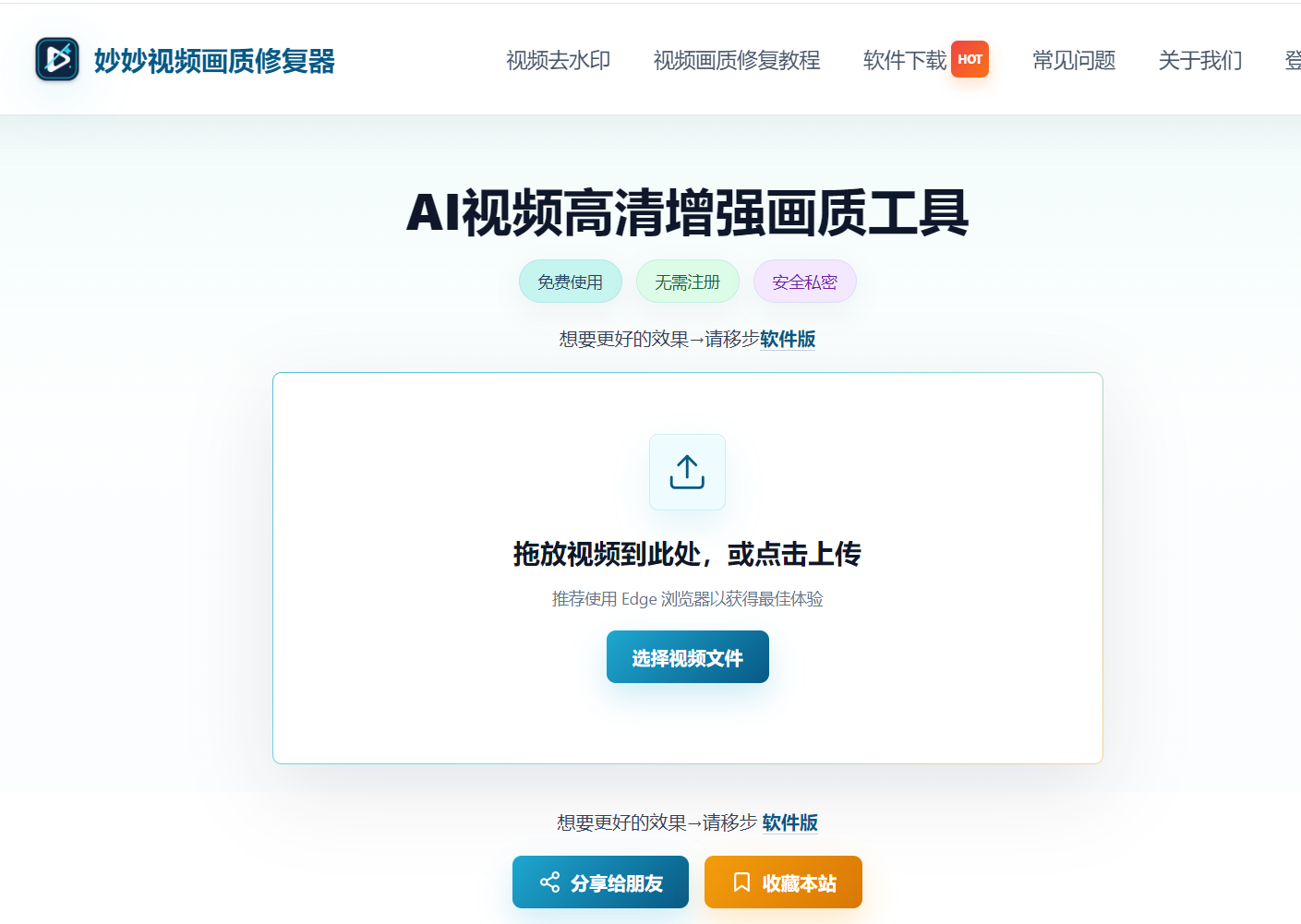
- Visit the Miaomiao AI Video Upscaler page in any modern browser
- Click the upload area and select the blurry video file from your computer or phone
- Pick a target resolution, such as 4K for a balanced result
- Click the "Start" button and keep the tab open while processing runs locally
- Preview the before/after comparison, then click "Download" to save the HD video
Beginner tip: Start with a short test clip of 30-60 seconds to learn the workflow. Once you are happy with the settings, run the full video for the final HD output.
Common Beginner Issues and Pitfalls
The table below lists the most frequent beginner problems, their causes and quick solutions.
| Problem | Cause | Solution |
|---|---|---|
| Upload fails | Unsupported format or too large | Convert to MP4 or trim the video first |
| Output still blurry | Original too low quality or wrong resolution | Try a higher target resolution and enable denoising |
| Processing too slow | Long video or high target on weak device | Trim the video or lower target resolution |
| Audio out of sync | Variable frame rate source | Convert to constant frame rate before repair |
| File too large to save | High bitrate output | Use a free compressor after repair |
Follow the beginner guide and repair your first video in 5 easy steps with Miaomiao AI
Repair Video Now →Conclusion
Video quality repair is approachable for everyone. Prepare your file, follow the 5 steps of tool selection, upload, settings, processing and download, and use Miaomiao AI as the demo tool for a free, browser-based, privacy-safe experience. With a little practice, even complete beginners can turn blurry footage into HD.
Frequently Asked Questions
Can a beginner repair video quality?
Yes. Miaomiao AI is designed for beginners: open it in the browser, upload the video, pick a resolution and click start. No technical skills or software installation are required.
What is the easiest video repair tool for newbies?
Miaomiao AI is the easiest because it is free, runs in the browser with local processing and supports 4K upscaling with one click, making it perfect for first-time users.
Do I need to install software to repair video?
No. Miaomiao AI works entirely in the browser, so there is nothing to download or install. Your video is processed locally for privacy.